


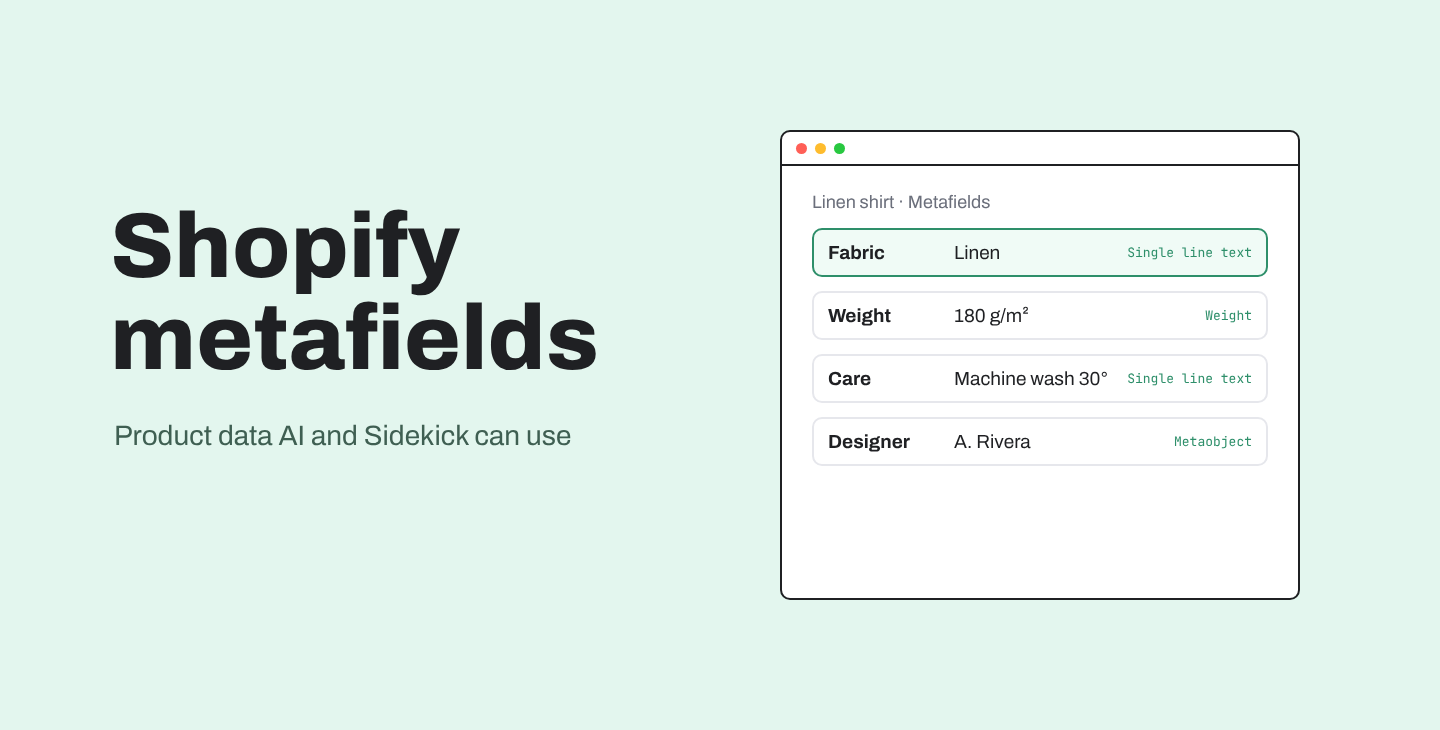
Shopify metafields are custom fields you add to products, variants, collections, customers and orders to store details Shopify doesn't have a box for, like fabric, care instructions, supplier or a fit note. Metaobjects are their bigger sibling: reusable groups of fields, such as a designer profile or a size chart, that you build once and link to as many products as you like. You set up both in your admin under Settings > Metafields and metaobjects.
For years, metafields were mostly a theme trick for showing extra text on a product page. That has changed. In 2026 Shopify made them usable as filters and dimensions in Analytics, opened them to Sidekick's analytics answers, and lets Shopify Catalog use them as sources for the product data AI channels receive. A messy set of metafields now costs you in reports, filters and AI shopping, not just on the page.
This guide covers what each one is, when to use which, how to plan a clean data model, how to add and show them, and a checklist to audit the metafields you already have. Steps were checked against Shopify's Help Center and changelog on 28 Nov 2026.
What are Shopify metafields?
A metafield is one extra field on one type of record. Shopify's Help Center puts it as extending "an existing platform data model, such as products, customers, and orders."
Each metafield has two parts:
- A definition. The field itself: its name ("Fabric"), its identifier (
custom.fabric, called the namespace and key), its type (single line text, integer, date, product reference and so on) and any validation rules. You create it once. - A value. What you fill in for each record, such as "100% linen" on one product and "Organic cotton" on another.
You can add metafields to products, variants, collections, customers, orders and several other parts of the store, including companies for B2B. Shopify offers a set of standard definitions too: when you type a name, it may suggest a matching standard definition, which is worth picking because apps and themes are more likely to recognize it.
Common uses for brands:
- Product details: material, care instructions, dimensions, country of origin, ingredients.
- Variant details: a per-variant fit note or a different care label for one colour.
- Collection content: a second description block, a banner image, a buying guide.
- Customer and order data: a loyalty tier, a gift message, a wholesale account number.
What are Shopify metaobjects?
A metaobject is a set of fields that belong together, saved as its own entry. Shopify's examples include a product highlight (icon, title and description), an influencer profile, an FAQ (question and answer pairs) and an event (name, location, year and description).
You manage metaobjects in two places:
- Settings > Metafields and metaobjects for the structure (the metaobject definition and its fields).
- Content > Metaobjects for the entries themselves.
Some Help Center pages still call the settings area Custom data, which was its older name.
The real power is in linking. Say you sell homeware from 12 designers. Rather than typing each designer's name, photo and bio into every product, you create a "Designer" metaobject with 12 entries, then add a product metafield of type Metaobject reference that points to one of them. Update a bio once and it changes on every product that references it.
Metaobjects can also be used on their own. With Storefronts access and Publish entries as web pages turned on, each entry can become a page on your store, such as one page per designer or per store location.
Metafields vs metaobjects: when to use each
The rule we use with clients: if the value belongs to one product, use a metafield; if the same group of details repeats across many products, make it a metaobject and reference it.
Here's how the two compare for typical catalog jobs:
| Job | Use | Why |
|---|---|---|
Fabric of one product |
Metafield |
One value per product |
Care instructions shared by 200 products |
Metaobject |
Edit once, updates everywhere |
Designer name, photo and bio |
Metaobject |
Several fields that belong together |
Product weight for a spec table |
Metafield |
One number per product |
Size chart per brand |
Metaobject |
Reused across a whole range |
Gift message on an order |
Metafield |
Unique to each order |
A quick test: if you'd copy and paste the same text into more than a handful of products, you want a metaobject.
Category metafields
Shopify also has category metafields, which come from its Standard Product Taxonomy. When you pick a product category (for example, a shirt), Shopify attaches attributes for that category, such as size, neckline or fabric, with ready-made entries you can use as is or customize. Some are added automatically based on AI predictions.
Category metafields are worth using before you invent your own "Colour" or "Size" field, because they're already standard across Shopify. You can link them to variant options, so renaming "black" to "graphite" updates everywhere, and colour entries can show as swatches. They also work as Search & Discovery filters and in Analytics.
How to plan a clean metafield data model
Most metafield mess comes from adding fields one at a time, each for a different app or a different person's idea. Spend an hour planning before you add more.
- List the questions you want answered. "Sales by fabric", "returns by supplier", "which products are machine washable". Each question needs a field with consistent values.
- Check what already exists. Category metafields and Shopify's standard definitions may already cover it. Don't create
custom.colourif the category gives you Color. - Name fields once, plainly. One name per idea ("Fabric", not "Material", "Fabric type" and "fabric_2"). Keep the namespace
customfor fields you own, and leave app namespaces to the apps. - Pick the strictest type that fits. A number goes in an Integer or Decimal field, a yes/no in True or false, a weight in a Weight measurement field. Text fields can't be summed, sorted or range-filtered properly.
- Add validation. Single line text can be limited to preset choices, which stops "Linen", "linen" and "100% Linen" from becoming three filter values. Multi-line text can have length limits; ratings use a scale you set.
- Decide one source of truth. If your ERP, PIM or supplier feed owns the data, write it into Shopify from there and don't let staff edit it by hand in the admin as well.
- Write it down. A one-page sheet with each field, its type, allowed values and who owns it. New staff and agencies will thank you.
Before you add a field, check the options you'll need later. They're set per definition, and some have caps, as of 28 Nov 2026:
| Option | Works on | Limit |
|---|---|---|
Storefronts access |
All metafields |
None listed |
Filter or group data in Analytics |
Products, variants, customers, orders |
Supported types only |
Use as a condition in collections |
Products, variants |
128 definitions each |
Use as a filter in product index |
Products |
50 definitions |
Use as a filter in orders index |
Orders |
5 definitions |
You change these in Settings > Metafields and metaobjects: click the part of the store, click the definition, then select or deselect options in the Options section and click Save.
How to use metafields in Shopify: add definitions and values
Here's how to add a metafield definition, per Shopify's Help Center:
- Open a product (or customer, order or other record), or go to Settings > Metafields and metaobjects.
- In the Metafields section, click Add definition.
- Enter a Name. If Shopify suggests a matching standard definition, click it.
- Optional: edit the Namespace and key.
- Click Select type and choose a type. Click One value and switch to List of values if a product can have several (for example, several fabrics).
- Optional: add a description and set up the Validation rules.
- Turn on the options you need (see the table above), then click Save.
To fill in values:
- One at a time: open the product and fill in the Metafields section.
- In bulk in the admin: go to Products, select the products, click Edit products, then Columns, and pick the metafields under Metafields. This works for products, variants, collections and customers. Shopify recommends Chrome, Firefox or Safari for this, as Edge can throw errors on long product metafield edits.
- By CSV: product CSV import and export supports product metafields, with headers like
product.metafields.custom.fabric. Variant metafields aren't supported in the product CSV; use the variant bulk editor instead. - With an app: Matrixify: Data Export Import exports and imports metafields, metaobjects and definitions. As of 28 Nov 2026 it has a free plan with small per-file limits and paid plans from $20 a month.
Staff need the View and Create and edit permissions under Products to add or change product metafield definitions and values.
How to show metafields on your storefront
Data in a metafield does nothing for shoppers until your theme shows it. If your theme supports dynamic sources, you can connect metafields without code:
- Go to Online Store > Themes and click Customize.
- Open a product template and select a section or block that supports dynamic sources, such as the product information section or a text block.
- Click the Connect dynamic source icon next to a setting and pick your metafield.
- In text and rich text settings, you can add more than one source, one at a time. Shopify allows up to 50 dynamic sources per setting and 100 per template.
Some cases still need a developer: older (vintage) themes, metafield types your theme doesn't support, and product reference lists, which need a custom section or a theme that uses product list settings. Metaobjects need a theme section that supports them, or a small Liquid edit. Good first projects are a materials and care tab, a spec table, and a designer block driven by a metaobject.
Why structured product data matters more in 2026
Three changes this year mean well-typed, consistent metafields pay off outside the product page.
Analytics and Sidekick can use your custom data
Since 12 February 2026, product, variant, customer and order metafields can be dimensions and filters in Analytics reports and Explore. Metaobject fields followed, when a product, variant, customer or order metafield references the metaobject. You turn this on per definition with Filter or group data in Analytics.
On 17 November 2026 Shopify added the same data to Sidekick. You can now ask, in the words of Shopify's example, "Show me total sales by fabric for last quarter" and get a breakdown next to your sales metrics. Two catches: only metafields with Filter or group data in Analytics turned on are used, and Shopify says some metafield types and reports aren't supported yet. Eligible types for the Analytics option include single line and multi-line text, integer, decimal, true or false, date, URL, colour and rating. See our Shopify Sidekick guide for prompts.
This is where inconsistent values hurt. If half your linen products say "Linen" and half say "100% linen", your sales by fabric report splits one fabric into two rows.
Filters in Search & Discovery
Shopify's free Search & Discovery app turns metafields into storefront filters. Go to Apps > Search & Discovery, click Filters, add a filter and choose your metafield as the Source. Supported types are single line text (and list), decimal, integer, true or false, and metaobject reference (and list). As of 28 Nov 2026, a store can have up to 25 filters in total, and each filter shows up to 100 values. Your theme must support filtering, or customers won't see them. For more on structuring collections, see our guide to Shopify collection pages.
AI shopping channels read your product data
Shopify's agentic storefronts send your products to AI assistants such as ChatGPT and Copilot through Shopify Catalog. Under Sales channels > Agentic, you can choose a product metafield as the source for the product title or description that Catalog sends, and use a metafield to group variants. Shopify doesn't publish exactly which other fields each AI channel uses, so the safe approach is to keep the facts shoppers ask about (fabric, size, fit, dimensions) in structured fields and in your description. Our guide to Shopify agentic commerce covers the channels, and our Shopify SEO guide covers product data for search.
Audit your existing metafields: a checklist
Most stores over two years old have metafields left by apps they no longer use, and fields created by different people for the same thing. Go to Settings > Metafields and metaobjects, open Products first, and work through this list:
- Inconsistent names. "Material", "Fabric" and "fabric_type" for the same idea. Pick one, move the values, delete the rest.
- Wrong types. Numbers, weights or dates stored as text. They can't be sorted, range-filtered or added up. Create a typed definition and move the values across.
- Empty values. Definitions filled in on 10% of products are useless as filters or report dimensions. Fill them, or delete them.
- Free-text values that should be choices. Check for spelling and case variants, then add preset choices so it can't happen again.
- Duplicates from old apps. Namespaces you don't recognize usually belong to an app. Check whether the app is still installed and in use before deleting anything, because some themes still read that data.
- Metafields without a definition. Values created by apps or imports sometimes have no definition, so they have no type or validation. Shopify lets you migrate existing metafields to a definition; do that for the ones you use.
- Validation errors. If you migrate values to a definition and some don't match the rules, Shopify flags them for you to fix.
- Options not turned on. Check that fields you want in reports have Filter or group data in Analytics, and fields used in filters are set up in Search & Discovery.
- Repeated text that should be a metaobject. Care instructions, size charts or brand bios pasted into hundreds of products.
Do the cleanup on a copy of your data first (export a CSV or use Matrixify), and check your theme after each change: deleting a definition the theme still uses will remove that content from your product pages.
If your store has a large catalog or years of app leftovers, this is a job worth handing to someone who has done it before. A vetted Shopify expert can map your fields, migrate values and set up category metafields without breaking your theme. If you're also running into limits on product options, see our Shopify variant limit guide.
What to do next
- Open Settings > Metafields and metaobjects and count your product definitions. Note any you don't recognize.
- Write down three questions you'd like your reports to answer, such as sales by fabric. Check that a typed, consistent field exists for each.
- Turn on Filter or group data in Analytics for those fields, then ask Sidekick one of the questions.
- Pick one block of text you repeat across many products and turn it into a metaobject.
- Add one metafield filter in Search & Discovery and check it on your collection pages.






 Request to Join