


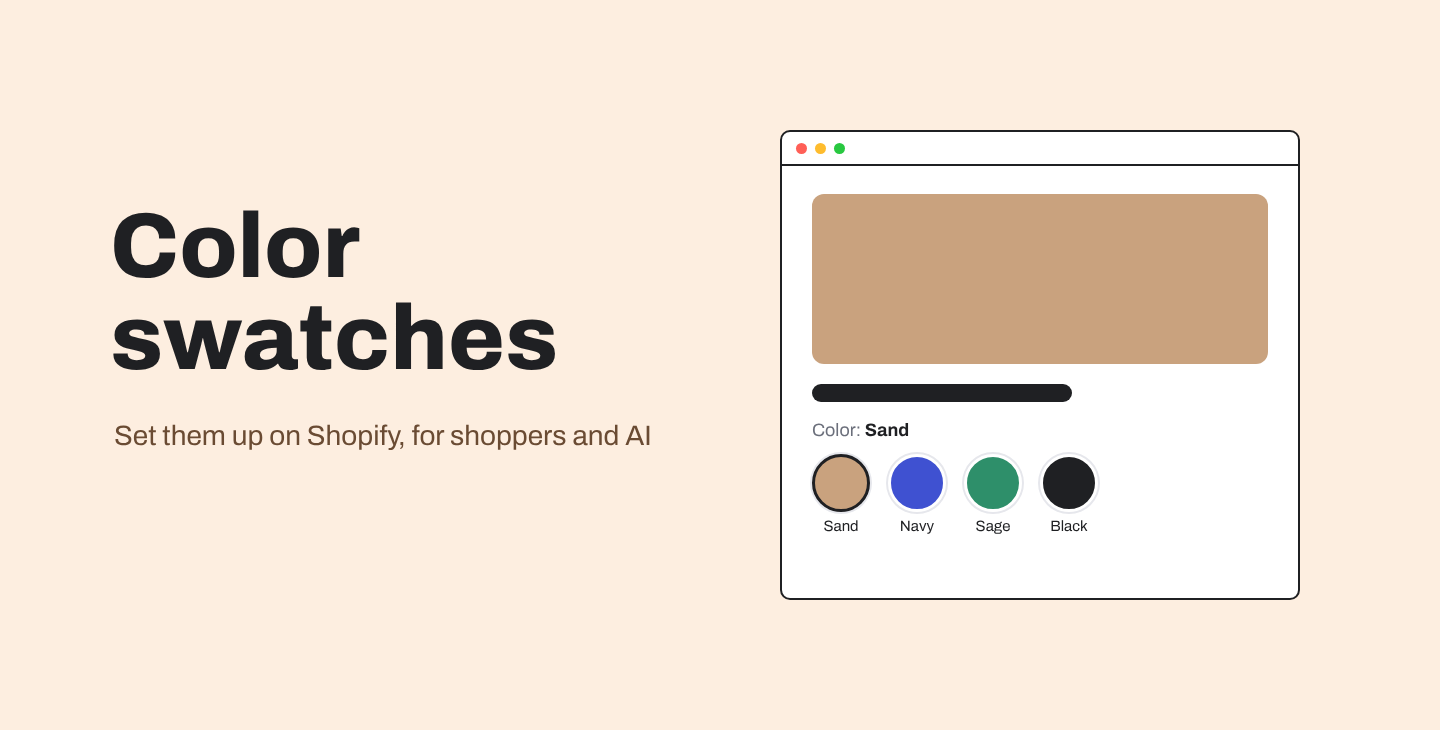
Shopify color swatches are built into Shopify: you link a product's color option to a color category metafield, give each color entry a hex color or an image, and a current theme such as Dawn or Horizon shows those swatches in the variant picker instead of a dropdown. You don't need an app for the basics. You may still want one for swatches on collection pages in some themes, for separate products shown as one listing, or for bulk image assignment.
This guide covers the native setup step by step, which free themes show swatches and where, when an app is worth paying for (with prices as of 28 Nov 2026), how to match variant images, naming and accessibility rules, and why swatch data now matters to AI shopping agents as well as shoppers.
What Shopify swatches are, and what changed
A swatch is a small circle or square in the variant picker that shows the color or pattern of each option value, such as Navy, Sage or Leopard print. For years Shopify had no native swatches, so stores used apps or theme code that guessed colors from option names.
That changed with the Winter '24 Edition. Shopify's partner blog (31 January 2024) says swatches are now "natively available for Shopify themes", with Dawn 13 the first free theme to support them. The data behind a swatch now lives in Shopify itself:
- The product category (from Shopify's product taxonomy) unlocks category metafields, including a color metafield for many categories, from clothing to furniture.
- Color entries in that metafield each have a name and can hold a color, an image, or both. Shopify's own API docs describe a swatch as exactly that: a color and an image.
- The variant option is linked to the metafield, so each option value points to an entry instead of being plain text.
Because the swatch is stored data, any theme, app or sales channel that reads Shopify's product options can use it. That's the part most older guides miss.
How to add color swatches in Shopify without an app
These steps follow Shopify's Help Center article on adding color swatches with category metafields, checked on 28 Nov 2026. Do one product first and look at it on your storefront before you change the rest.
- Set the category. Go to Products, open a product, and in the Category section choose a category that has a color metafield, for example Apparel & Accessories > Clothing > Clothing Tops > Shirts. Click Save.
- Check the color entries. In the Category metafields section, click the color metafield. Click an entry to edit it, or click Add new entry to create your own color (say, your brand's exact "Harbour Blue"), fill in the fields and click Save. Edits to an entry apply everywhere that entry is used, across all products.
- Link the option. In the Variants section, click + Add options like size or color and select the color category metafield. Option values fill in from its entries, and you can add more. Click Save.
- Move existing products over. For a product that already has a typed Color option, click the option, click the dynamic source icon and select the category metafield. Shopify's help page warns that existing values can be cleared when you do this on mobile, so make the change on desktop and check the variants afterwards.
- Turn swatches on in the theme. Go to Online Store > Themes > Customize, open a product template, click the Variant picker block and choose a swatch shape. Click Save.
Shopify's help page lists around 60 color-type category metafields besides plain Color, such as Frame color and Seat color, so pick the one your category actually offers. If your products have no category yet, Sidekick can list the products missing one.
How to add pattern and material swatches
Patterns use the same color metafield. Create an entry for the pattern ("Leopard", "Breton stripe", "Tartan") and upload an image of the fabric instead of, or as well as, a hex color. Themes that support swatches show the image in the circle or square. Use a tight crop of the real fabric at the same scale for every pattern, so a small print doesn't look like a plain color at swatch size.
Materials, finishes and other non-color options (oak, walnut, brushed brass) are harder. Shopify's help page says swatches only work on variants connected to a color category metafield and its entries. So for a Material option you have three choices:
- Use a color-type metafield your category offers for that attribute (for example a frame or finish color), with image entries.
- Use Horizon's Variant images setting (below), which shows each variant's own image in the swatch for options that have swatch data.
- Show materials as text buttons and rely on variant images in the gallery. For many stores that's clear enough.
Which themes show Shopify swatches
All Online Store 2.0 themes can read swatch data, but each theme decides where to show it. Here's what Shopify's two main free themes do, checked against their current source code on 28 Nov 2026 (Dawn 16.2, Horizon 4.5).
| Theme | Product page | Product cards | Swatch settings |
|---|---|---|---|
Dawn |
Yes, in the variant picker |
No |
Shape: circle, square or none |
Horizon |
Yes, in the variant picker |
Yes, with the Swatches block |
Size, corner radius, borders |
Dawn. In the Variant picker block, Style sets dropdown or pills, and Swatch sets circle, square or none. Dawn has no swatches on product cards.
Horizon. The Variant picker block has a Swatches toggle next to its dropdown or buttons style. Under Theme settings > Swatches you set width, height, corner radius and borders, and the Variant images checkbox uses each variant's own image as its swatch. Product cards can show swatches by adding the Swatches block, which "displays swatches from parent product". The Shopify Theme Store lists "Color swatches" and "Swatch filters" among Horizon's features.
Paid and vintage themes. Paid themes differ in where they show swatches and what the settings are called, so check your theme's documentation. Some older themes still build swatches from option names like "Color" or "Colour" and ignore metafield data. Vintage (pre-2.0) themes usually need a code edit, an app or a theme change. Our guide to the best free Shopify themes compares the current options.
Shopify swatches on collection pages and filters
There are two places shoppers see swatches before a product page.
Filters. With Shopify's Search & Discovery app, go to Filters, click Add filter, click + Select source and choose Color with the type Category metafield. Under Manage values, tick Include swatch to show each entry's color, and Use images when available to show its image. Leave both off for text-only filter values. Because the filter reads the same entries as your variants, "Navy" in a filter and "Navy" on the product are the same thing. Our collection pages guide covers the rest of filter setup.
Product cards. This is up to the theme. Horizon can show them; Dawn can't. If your theme can't, it's the most common reason stores still install a swatch app.
Match variant images to each swatch
A swatch that changes the color name but leaves the photo showing another color is worse than no swatch. Shopify lets each variant have one media item, chosen from the product's media (a product can hold up to 250 media items), per its variants help page.
- Assign an image to every variant that has a visible color, not just the first.
- Make the first image of each color the same shot (front, flat lay or on-model), so switching colors compares like with like. Our Shopify product image size guide covers dimensions.
- If a color needs several photos and your theme only swaps one, that's a job for an app (see below) or a theme edit.
- Separate products per color (each with its own URL and reviews) can be shown as one listing with the Shopify Combined Listings app, which Shopify says is available only on Plus and enterprise plans. On other plans, some swatch apps offer product grouping.
Keep names consistent across your catalog
Swatches make naming mistakes visible. "Navy", "navy blue" and "Navy " (trailing space) become three swatches and three filter values.
- One name per color. Decide once whether it's "Grey" or "Gray", and keep a shared list. Because category metafield entries are reused, editing one entry fixes every product using it.
- Give brand names a base color. Shopify's developer docs show color entries with a reference to a standard taxonomy color as well as a name and hex code. When you add a custom entry like "Harbour Blue", set its base color too, and use plain color words (blue, green) in the description so search, feeds and agents can match it.
- Same option name everywhere. Call the option "Color" on every product rather than "Colour" on some and "Shade" on others.
- Watch the variant count. Every color multiplies your variants. If colors times sizes times materials gets large, read our guide to the Shopify variant limit before adding more options.
On a catalog of a few hundred products, moving typed options to metafield entries by hand takes days. That's usually done with a bulk export and import, or an app, rather than one product at a time.
Make swatches accessible
A circle of color with no text fails some shoppers: people with color blindness, people using screen readers, and anyone on a dim phone screen trying to tell navy from black.
The rule to follow is WCAG 2.2 success criterion 1.4.1, Use of Color (Level A): "Color is not used as the only visual means of conveying information, indicating an action, prompting a response, or distinguishing a visual element." For swatches that means:
- Show the color name. Display the selected value as text next to or above the swatches ("Color: Sage"). Dawn shows the selected value in the option heading and keeps each value as hidden text for screen readers, and Horizon shows the selected value next to its swatches. Check that your theme or app does the same.
- Mark the selected swatch with more than color. A border, check mark or thicker outline, not just a lighter tint.
- Show unavailable colors clearly. A strike-through or crossed-out swatch plus text, not only a faded circle.
- Keep tap targets large enough. Tiny swatches are hard to hit on phones; aim for about 44 pixels square including spacing.
- Use the keyboard to test. Tab to the picker, change the color with the keyboard, and check that the name and image update.
When you still need a Shopify swatch app
On a current theme, native swatches cover the product page and filters. An app earns its fee when you need one of these:
- Swatches on collection and home page product cards in a theme that doesn't show them.
- Several images per variant, with the gallery showing only the selected color's photos.
- Separate products grouped as one set of swatches without Shopify Plus.
- A vintage theme you can't replace yet.
- Bulk setup across hundreds of products.
Here are three swatch apps we checked on the Shopify App Store, with ratings and prices as of 28 Nov 2026. Prices are in USD and can change.
| App | Rating | Starting price | Good for |
|---|---|---|---|
OP Color Swatch Variant Images (OPTIS) |
5.0 (806 reviews) |
$11.90/month on Basic |
Swatches, variant images, product groups |
Rubik Variant Images & Swatch (Craftshift) |
5.0 (509 reviews) |
Free for 1 product; $25/month |
Several images per variant |
Swatchy: Color Swatch & Images (OrichiCommerce) |
4.6 (25 reviews) |
Free for 1 product; $8.99/month |
Swatches on cards, product grouping |
OPTIS prices by Shopify plan (from $11.90 on Basic to $99.90 on Plus) with a 30-day trial, and is free only on trial and development stores. Rubik's $25 Starter plan covers 100 products; larger plans are $50 and $75 a month. Swatchy's paid plan covers unlimited variants. Before you install any of them, check whether it reads Shopify's native swatch data or keeps its own: an app that stores colors separately won't feed your filters or AI channels.
Why swatches matter beyond the product page
Swatch data now travels with your products. On 19 November 2026, Shopify's developer changelog announced that the Catalog API, which AI shopping agents use to read Shopify products, can return an image swatch for each product option value. Three details matter for a merchant:
- Swatches only come back when an agent asks for a product's full details (
get_product). Search and lookup responses don't include them, so an agent shortlisting products still works from titles, option names and text values. - Shopify tells agent builders to keep the option's text label visible or accessible, and to fall back to the label when there's no swatch or the image fails to load.
- If an option value has no swatch data, the field is simply left out.
So the same work that helps shoppers (linked color entries, clean names, an image per variant) also gives agents a picture of each option once they look at a product. Shopify hasn't published any data on whether swatches change how often agents recommend a product, so treat this as good data hygiene, not a ranking trick. Our Shopify agentic commerce guide covers how your products reach ChatGPT, Gemini, Copilot and other assistants.
What to do next
Start with your five best-selling products that come in colors. Set each one's category, link its color option to the color metafield, check the entries and variant images, and look at the product page and a filtered collection on a phone. If it looks right, write down your color names and work through the rest of the catalog by collection.
If you have hundreds of products with typed color options, inconsistent names or no categories, it's quicker to do it as one cleanup. You can brief a vetted Shopify expert to map your colors, move options to metafields and check the result in your theme.




 Request to Join