


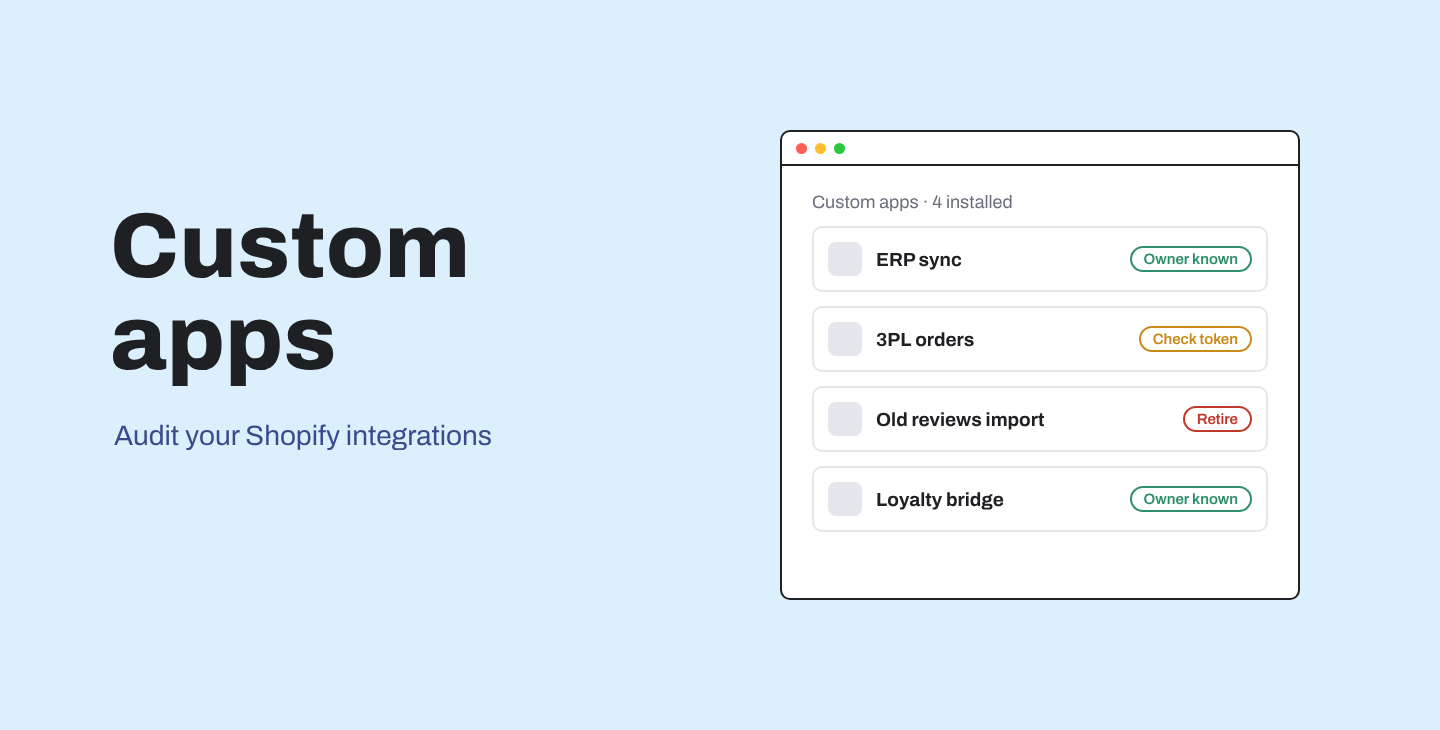
A Shopify custom app is an app built for one merchant, not listed on the Shopify App Store, that connects your store to something specific to your business: an ERP, a 3PL's warehouse system, a loyalty program, a recovery-email tool or a script a freelancer wrote. If an agency or developer has ever "connected" a system to your store, you almost certainly have at least one.
Shopify changed how custom apps are managed and secured between November 2026 and January 2027. Most of the work falls on the people who build apps, but you're the one who notices when an order sync stops. This guide explains what a custom app is, where yours live now, which deadlines Shopify has confirmed (as of 28 November 2026), and gives you a checklist to audit your store's apps and the questions to ask each developer or vendor.
What is a Shopify custom app?
Shopify sorts apps by how they're distributed. Public apps are built for many stores, reviewed by Shopify and installed from the App Store. Custom apps are built for a specific merchant, need no App Store review and can't use Shopify's app billing system. A custom app can be installed on a single store, or on several stores in the same Shopify Plus organization.
In practice, your store can have three kinds of app:
| App type | Built for | Shopify review | Managed in |
|---|---|---|---|
Public app |
Many stores |
Yes |
Developer's Dev Dashboard |
Custom app (Dev Dashboard) |
One merchant |
No |
Dev Dashboard of whoever created it |
Legacy admin custom app |
One store |
No |
Your store's Dev Dashboard |
A "legacy" custom app is one created in the Shopify admin (under Settings > Apps > Develop apps) before January 1, 2026. These are often the quick integrations a freelancer set up years ago by creating an app in your admin and copying its access token into another system.
Two practical differences matter for a merchant:
- Who owns it. If an agency built the app in its own Dev Dashboard and installed it on your store, the app belongs to the agency's organization. If someone created it in your admin, it belongs to your store, even if the person who made it has moved on.
- What it can touch. Every app has access scopes, such as
read_ordersorwrite_inventory. A custom app has whatever scopes it was given when it was set up, and nobody reviews whether it still needs them.
What happened to Shopify private apps?
Private apps were the older way to connect your own integration. Shopify deprecated them in January 2022 and, on January 19 and 20, 2023, automatically converted every remaining private app into a custom app. Shopify said the converted apps kept the same features.
So if an older guide, or a tool's setup page, tells you to "create a private app" or asks for an "API key and password", it's describing that pre-2023 setup. The credentials it wants are now called the client ID and the access token. Our guide to the Shopify API key explains which is which.
Where Shopify custom apps live now
All custom apps are now built and managed in the Dev Dashboard at dev.shopify.com:
- Since January 1, 2026, nobody can create a new custom app in the Shopify admin. New ones are built in the Dev Dashboard and installed on your store. Existing ones kept working.
- Since November 17, 2026, custom apps created in the admin, including apps transferred to a merchant, also appear in the Dev Dashboard. Shopify says they stay installed with their current scopes and webhook subscriptions, their existing Admin API access tokens keep working, and the move didn't replace any tokens or turn on any restrictions.
What you gain from that move, if you or your developer use it:
- API and webhook logs. The Dev Dashboard's Logs show the app's Admin API requests and the webhooks Shopify sent it, with status codes and the client IP address of each request. Logs are kept for 30 days, and one search covers up to 7 days.
- IP restrictions. An optional IP allowlist (in the app's Settings, next to IP allowlist) limits which addresses can use the app's credentials. You can test it against the last 30 days of traffic before you switch on Enforce IP allowlist. Requests from other addresses then fail with a 403 error.
Getting there. In your Shopify admin, go to Settings > Apps and click Develop apps. If the App development page opens, click Build apps in Dev Dashboard. You need the organization owner or administrator role, or the App developer role (on Plus, a custom role with Build and manage apps also works). Collaborator accounts, which agencies often use, can't open the Dev Dashboard. They can still use a moved legacy app in the admin, but can't change it.
That last point catches people out: if your freelancer has only collaborator access, they may not be able to see the logs or settings for the app they built in your admin.
Shopify API access tokens, in plain terms
An access token is the credential that lets an app read or change your store's data. Whoever holds it can do anything the app's scopes allow, which is why Shopify's recent changes focus on tokens:
- Older tokens don't expire. A legacy admin custom app was given one token at install, shown once, and it works until the app is uninstalled. That's convenient and also the risk: a token pasted into an email or a spreadsheet years ago still works.
- New tokens expire. Custom apps created on or after December 1, 2026 must use expiring offline access tokens, which the app renews in the background with a refresh token. Apps that get tokens through the client credentials grant (an app and store in the same organization) already get tokens that last 24 hours.
For where to find credentials and how a developer requests a token, see how to find your Shopify API key and access token.
The late-2026 security changes: what changed and who acts
Shopify announced these through its developer changelog in October and November 2026. The table below lists the deadlines confirmed on shopify.dev as of 28 November 2026. "Outside your organization" means an app owned by one organization (usually an agency or vendor) and installed on a store it doesn't own, which describes most agency-built custom apps. Shopify's IP allowlist deadlines fall at 11:59 PM ET on the date shown.
| Date | What changes | Applies to | Who acts |
|---|---|---|---|
20 Nov 2026 |
IP allowlist required, or app delisted |
Public apps |
App vendor |
20 Nov 2026 |
IP allowlist needed for new installs |
Custom apps outside your organization |
App developer |
1 Dec 2026 |
Expiring offline tokens required |
Custom apps created from this date |
App developer |
1 Dec 2026 |
Network access declaration, or deploys rejected |
Public and agency-owned storefront apps |
App developer |
1 Dec 2026 |
Four customer data fields for recovery URLs |
Public apps |
App vendor |
1 Jan 2027 |
IP allowlist on existing installs |
Custom apps outside your organization |
App developer |
1 Jan 2027 |
Four customer data fields for recovery URLs |
Partner and Dev Dashboard custom apps |
App owner |
1 Jan 2027 |
Undeclared storefront apps blocked from new installs |
Public and agency-owned storefront apps |
App developer |
1 Jan 2027 |
Delisted if still on non-expiring tokens |
Public apps |
App vendor |
15 Jan 2027 |
Admin warnings to merchants |
Public apps on non-expiring tokens |
You: contact vendor |
1 Apr 2027 |
Non-expiring token requests fail |
Public apps |
App vendor |
What each change means, in merchant terms:
- IP allowlists. The app's developer lists the server addresses its requests come from, and Shopify rejects requests from anywhere else. If a token leaks, it's much less useful to whoever has it. Public apps without one were delisted after 20 November and can't take new installs, but existing installs keep working and are flagged in your admin under Settings > Apps. Adding an allowlist relists the app automatically. Custom apps you or your team created aren't covered by the requirement; the allowlist is optional for them.
- Expiring offline tokens. The app's long-lived access is replaced by short-lived tokens it renews itself. For custom apps the rule only covers apps created on or after 1 December 2026; existing custom and merchant-created apps can keep their current tokens. For public apps, Shopify says non-compliant apps leave the App Store on 1 January 2027, merchants using them see admin warnings from 15 January, and their affected Admin API requests fail with 403 errors from 1 April 2027.
- Network access declarations. Apps that run code on your online store (theme app blocks and embeds, script tags, app proxies, apps with the
write_themesscope, or some web pixels) must declare which servers that code talks to. This is a developer change in the app's configuration. Shopify says installs that already exist keep working, and merchants of affected public apps see a warning in the admin from 1 December. It doesn't apply to apps created by merchants or to custom apps installed only inside their owner's organization. - Abandoned checkout recovery URLs. The link in a "you left something in your cart" email opens the shopper's checkout with their details filled in. Apps that read it now need approval for all four protected customer data fields: name, email, phone and address. Public apps need Shopify's data protection review; custom apps built by a partner or created by a merchant in the Dev Dashboard enable the fields in the Dev Dashboard, with no review. Apps created in the Shopify admin aren't affected.
One quiet failure is worth knowing about: if an app without that approval reads abandoned checkouts through the older REST API or webhooks, Shopify simply removes the recovery URL from the data, with no error. A recovery email could then go out with a broken or missing link and nobody would be alerted.
Shopify's 19 November update also says custom apps created by merchants must now have bulk queries and mutations switched on in the app's Dev Dashboard Settings before they can use them. If a large catalog or order export from a merchant-owned app suddenly fails with an access error, check that first.
Audit your store's custom apps: a checklist
Shopify doesn't guarantee that meeting these deadlines makes an integration secure, and neither can we. What an audit does is make sure every app connected to your store has an owner, still has a reason to exist, and has no more access than it needs. Set aside an hour with whoever manages your integrations.
- List every app and integration. Start with Settings > Apps for installed apps, then the Dev Dashboard for custom apps your store owns. Add systems that connect through an app you might not think of as one: your ERP, 3PL or warehouse, accounting, reviews, loyalty, subscriptions, recovery emails and SMS, marketplaces, and any custom admin apps Sidekick generated for you.
- Name an owner and a contact for each. Who built it (agency, freelancer, vendor, in-house), who maintains it now, and how to reach them. If the answer is "a freelancer from 2021", mark it.
- Note which organization owns the app. Your store's own Dev Dashboard, or the developer's. That tells you who has to act on the deadlines above.
- Record what data and scopes it has. For apps in your Dev Dashboard, check the scopes on the current version. Flag anything that can write orders, customers or inventory, and anything that reads customer names, emails, phone numbers or addresses.
- Check it's still used. An app nobody can explain, or one replaced by another tool two years ago, is a candidate for removal. Leftover apps keep their access until they're uninstalled.
- Find out who holds the credentials. Where is the token or client secret stored: a password manager, the vendor's system, a developer's laptop, an old email thread? If people who've left still have it, plan to rotate it or replace the app.
- Look for errors. In the Dev Dashboard Logs, filter by webhook status and API response codes for the last 7 days. Repeated failed webhooks or 403 errors mean something is already broken. Also look at what your other systems report, such as unsynced orders or stock mismatches.
- Check abandoned-cart recovery. Send yourself a test recovery email or SMS and click the link. It should open a checkout with your test cart.
- Decide: keep, fix or retire. Keep and document what's healthy. Fix what's missing an owner, has errors or has too much access. Retire what's unused: export any data you need, uninstall it under Settings > Apps, and only then delete a custom app, because a deleted custom app can't be recovered. Some apps leave theme code behind after uninstall; our guide to leftover app code covers finding it.
- Back up before changes. Before anyone changes an app that writes to products or orders, back up your store data.
Keep the list in one shared document and review it when staff or agencies change. Integrations tend to outlive the people who set them up.
What to ask your developer or app vendor before each deadline
You don't need to understand the implementation, only to get clear answers. Ask in writing and keep the replies with your app list.
For agency- or freelancer-built custom apps (owned by their organization):
- Is this app installed on our store from your organization's Dev Dashboard? Which app name should we look for?
- Have you enabled an IP allowlist on it? Shopify requires one for existing installs outside your organization by 1 January 2027.
- Does the app run anything on our storefront (theme blocks, app embeds, script tags, an app proxy)? If so, has it declared its network access?
- Does it read abandoned checkout recovery URLs? If yes, have you enabled all four protected customer data fields before 1 January 2027?
- If you create a new app for us after 1 December 2026, does it use expiring offline tokens and refresh them on its own?
- If your company stopped working with us, how would we get the app handed over or replaced?
For custom apps your store owns (created in your admin or your Dev Dashboard):
- What is this app connected to, and is it still needed?
- Which scopes does it actually use? Can we remove any it doesn't need?
- Where is its access token stored, and who has seen it?
- Do its requests come from fixed server addresses? If so, should we turn on the IP allowlist after testing it against recent traffic?
- Does it run bulk exports or imports, and are bulk operations enabled in its settings?
For App Store apps (public apps):
- Is your app flagged in our Settings > Apps? If so, when will it be fixed?
- Have you moved to expiring offline access tokens ahead of 1 January 2027?
- If you send abandoned-cart recovery messages, has Shopify approved your access to customer name, email, phone and address?
For recovery-email tools such as Klaviyo, the vendor handles this on its side; your check is that recovery links in sent messages still work. Our Klaviyo Shopify integration guide covers how that connection is set up.
If an integration stops working
The signs usually show up outside Shopify first: orders stop reaching the warehouse, stock levels drift, a loyalty balance doesn't update, or recovery emails arrive with dead links. Before anyone rewrites code:
- Note when it started and match it against the dates in the table above.
- Check the logs for that app in the Dev Dashboard: 403 errors after an IP allowlist was switched on usually mean a server address is missing from the list; access denied on bulk operations usually means bulk access isn't enabled.
- Check the app is still installed under Settings > Apps and hasn't been flagged.
- Contact the owner with the times, error codes and what's affected.
If nobody owns the integration, or orders are stuck now, it's worth getting a developer to trace the cause directly.
What to do next
- Open Settings > Apps today and write down every installed app and the integrations behind them.
- Open the Dev Dashboard and check which custom apps your store owns, their scopes and the last 7 days of logs.
- Send the questions above to every agency, freelancer and vendor whose app touches orders, inventory or customer data, before 1 January 2027.
- Test one abandoned-cart recovery link.
- Uninstall anything nobody can explain, after exporting its data.
If you'd rather have someone run the audit or fix what it finds, you can hire a vetted Shopify expert.





 Request to Join