


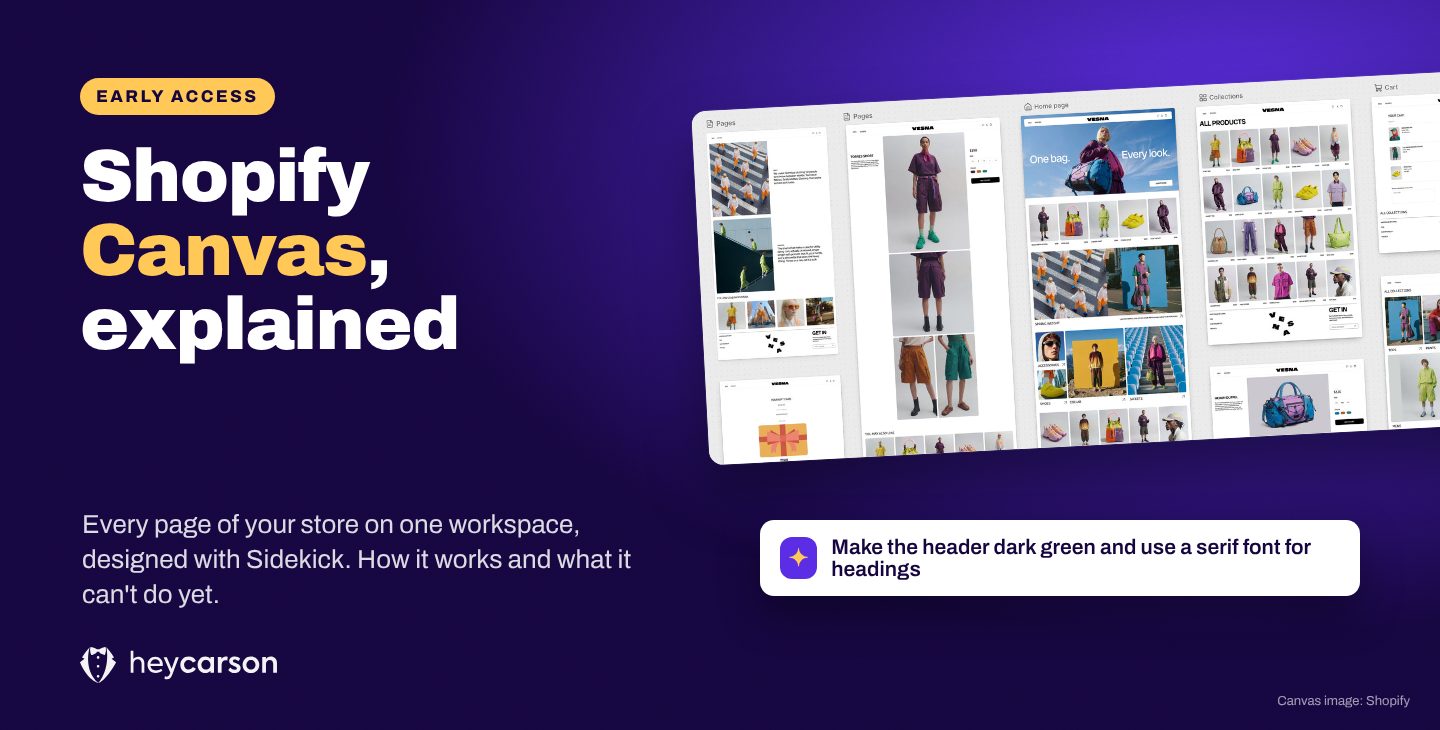
Shopify Canvas is a new design surface in the Shopify admin where you build or change your store's theme by talking to Sidekick, Shopify's AI assistant. Every page of your store sits side by side on one infinite workspace; you pan across them, zoom into a section, and ask Sidekick to change a block, a template or the whole design. Shopify announced Canvas on 1 October 2026. As of 28 November 2026 it's in early access, desktop only, and works with Shopify's own themes and custom themes, not third-party Theme Store themes.
This guide covers everything Shopify has published about Canvas so far: who can use it, how to open it, every part of the interface, how saving and publishing work, how it differs from the theme editor, and the limits you should know before you move a live store into it. Everything here comes from Shopify's Canvas Help Center pages, the announcement and Shopify's developer docs, checked on 28 November 2026. Canvas is changing quickly, so we'll update this guide as Shopify does.
If you want a store generated from a description rather than designed in detail, our guide to the Shopify AI store builder covers that tool and the third-party alternatives.
What is Shopify Canvas?
Shopify describes Canvas as "a new design surface where merchants build with Sidekick". Three ideas make it different from the theme editor you know:
- All pages at once. Your home page, product, collection, cart and other templates appear side by side on one workspace. You see how a change to the header affects every page, instead of clicking through templates one at a time.
- Real code, not a preview. Shopify says merchants "aren't editing a static preview, but a render of the real code behind the store." Sidekick "now works directly on the theme's files", writing custom theme code rather than only rearranging existing sections.
- Sidekick as the main tool. You still have settings and inline editing, but most changes start with a prompt: "make the header dark green with a serif font" or "add a size guide block under the price on product pages".
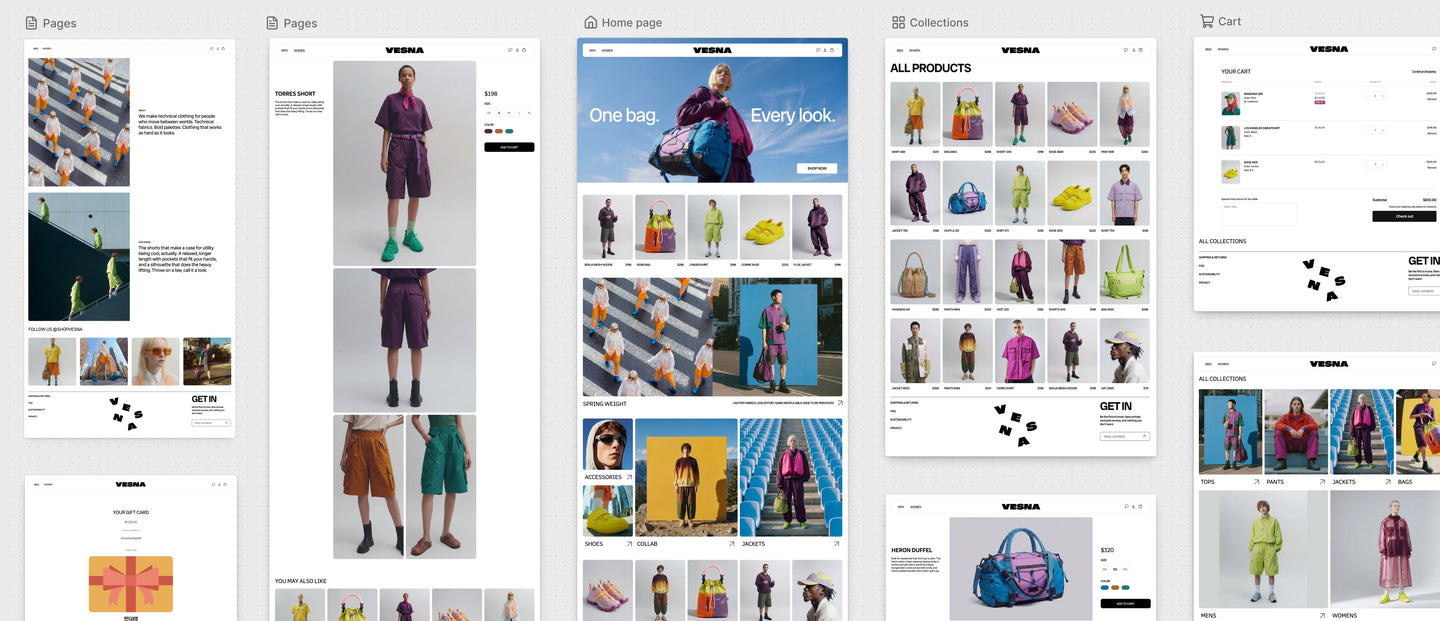
Canvas lays out every template side by side. Image: Shopify.
The practical difference: in the theme editor, Sidekick can only add sections and blocks your theme already includes. With Canvas, Shopify's Sidekick help says you can ask it "to build blocks that your theme doesn't include, or to redesign entire templates."
Shopify's own launch video shows the workspace and a few edits in about three minutes:
Video: "Introducing Canvas: opening the aperture on online store design" by Shopify.
Who can use Shopify Canvas?
These are the requirements from Shopify's Canvas requirements page, as of 28 November 2026:
| Requirement | Details |
|---|---|
Access |
Early access, certain stores only |
Plan |
Plans that include theme customization |
Device |
Desktop only |
Staff permission |
Themes: Edit code |
Themes |
Shopify-made themes and custom themes |
Notes:
- Early access. Canvas rolled out to existing stores from 1 October 2026, and Shopify's Fall '26 Edition (28 October) still calls it early access. If you don't see the Canvas options described below, your store doesn't have it yet.
- Plan. If you move to a plan that doesn't include theme customization, you can't open Canvas.
- Third-party themes. Paid and free themes from other developers on the Theme Store aren't supported yet. Shopify's free themes, including Horizon and Dawn, are made by Shopify. A Shopify staff member wrote on the developer forum that full support for third-party themes is being worked on "before Canvas begins to become the default editor."
- Cost. Shopify hasn't published a separate price, credit system or usage limit for Canvas.
How many themes can use Canvas? Our count
Shopify's docs say Canvas works with Shopify-made themes and custom themes, but not how many that is. We counted on 28 November 2026:
- Shopify-made themes on the Theme Store: 24. All of them free, including Horizon, the nine other Horizon family themes, and Dawn.
- Third-party themes on the Theme Store: about 336 paid themes, by our count of distinct paid listings (the Theme Store's own filter counts presets, so it shows a much higher number).
So Canvas can open roughly 24 of about 360 Theme Store themes, or about 7%. None of the paid themes in our best Shopify themes guide, such as Impulse, Prestige or Warehouse, can be opened in Canvas yet. If you're on a paid theme and want Canvas, your options today are a free Shopify theme or a custom theme built by a developer.
How to open Canvas
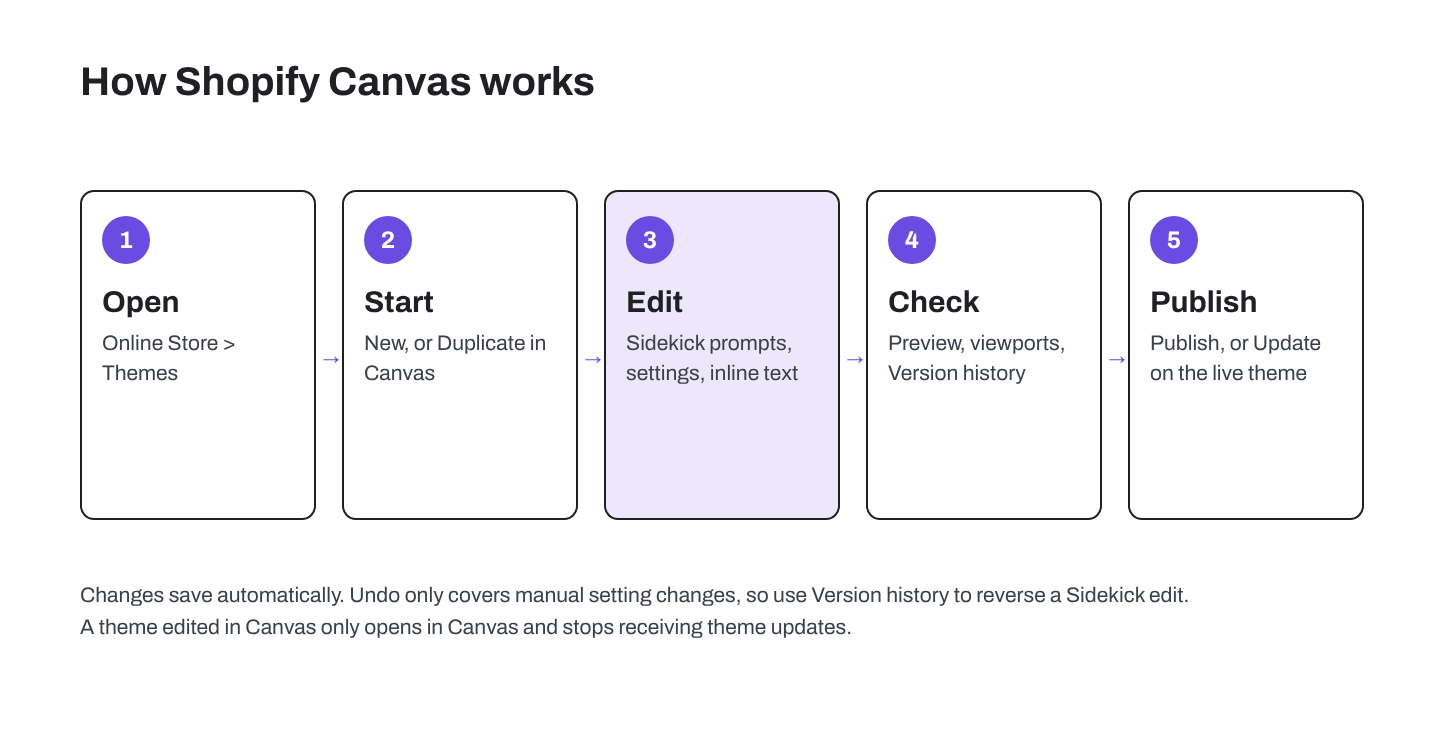
You open Canvas from Online Store > Themes in your Shopify admin. There are three ways in:
- Click New to create a new theme with Sidekick.
- Choose Duplicate in Canvas from the ⋯ menu on a supported theme, to make a Canvas copy of it.
- Click Edit theme on a theme that already shows the Canvas badge.
Themes you create or edit in Canvas stay in your normal theme library, marked with a Canvas badge.
Create a new theme with Canvas
- In your Shopify admin, go to Online Store, then Themes.
- Click New.
- In the Sidekick chat, describe your brand and the store you want: what you sell, who it's for, the look and feel. The more specific you are about tone, colors and type, the closer the first draft gets.
- Sidekick builds a theme from your description and opens it in Canvas. The new theme is added to your theme library as an unpublished theme, so customers don't see anything until you publish.
Duplicate an existing theme into Canvas
- Go to Online Store > Themes.
- On a supported theme, click ⋯, then Duplicate in Canvas.
- Edit the copy in Canvas.
The two themes are separate. Changes to one aren't added to the other. That's useful: your original stays available in the theme editor as a fallback.
The Canvas interface, part by part
Shopify's navigation guide lists these controls:
- Theme name menu (top left). Opens Version history and Theme settings (colors, typography and other theme-wide settings).
- Select tool and Pan tool. Select picks a section or block to edit. Pan moves around the workspace; you can also hold the space bar and drag.
- Jump to... Goes straight to a template, or back to the Overview of all pages.
- Viewport width. Switch between Wide, Desktop, Tablet and Mobile, or type a custom width in pixels.
- Preview (play icon). Browse the store as a customer would, clicking links and buttons.
- Publish. Publishes the theme. On your live theme, the button reads Update instead.
- Keyboard shortcuts. Press Ctrl/Cmd + / to see them.
Product, collection and page templates can show a different product, collection or page while you design, so you can check a long product title or a collection with few items. Templates can also have variations.
Working with Sidekick in Canvas
There are two kinds of Sidekick prompt:
- Theme-wide. The main Work with Sidekick field changes the whole theme: "make the site feel more premium", "use a warmer color palette", "add a sticky header".
- Block-level. Select a block and a second field appears for changes to just that block: "make this banner two columns with the image on the right".
You can keep more than one Sidekick chat open at the same time, which helps when you're working on several areas.
Other ways to edit
Not every change needs a prompt. From Shopify's customizing guide:
- Block settings. Select a block and change its settings directly.
- Inline text. Click text in the preview and type. (On some older themes this doesn't work.)
- Images. Select an image block and the image picker opens.
- Theme settings. Colors and typography for the whole theme.
You can't add a new block to a template manually in Canvas. Ask Sidekick to add it.
Saving, version history and undo
Canvas works differently from the theme editor here, and it catches people out:
- Changes save automatically. There's no save button.
- Publish doesn't save. Saving is automatic; Publish makes the theme live.
- Undo is limited. Ctrl/Cmd + Z and redo only work for manual setting changes. When Sidekick makes a change, your undo history is cleared.
- Version history is your safety net. To reverse a Sidekick change, ask Sidekick to undo it or open Version history from the theme name menu and Restore an earlier version. Versions are labelled Current version and Last published.
Our advice: before a big prompt ("redesign the home page"), note the time or check Version history, so you know which version to restore.
Publishing a Canvas theme
- For an unpublished theme, click Publish. Your previously published theme moves to Draft themes.
- For the live theme, click Update, then Publish changes. Customers only see your edits after that.
- If the theme can't be published, the dialog lists the errors with a Fix with Sidekick button.
Canvas vs the theme editor
This table compares Canvas with the theme editor, based on Shopify's Help Center as of 28 November 2026.
| Feature | Canvas | Theme editor |
|---|---|---|
Pages shown |
All side by side |
One at a time |
Main way to edit |
Sidekick prompts |
Sections and settings |
New custom blocks |
Sidekick writes them |
Theme's own blocks only |
Third-party themes |
Not supported |
Supported |
App blocks and embeds |
Not supported |
Supported |
Markets and translations |
Not supported |
Supported |
Theme updates |
Not received |
Received |
Download theme files |
No |
Yes |
Devices |
Desktop only |
Desktop and mobile |
Canvas is optional. You can keep using the theme editor for any theme you haven't created or edited in Canvas. If you're already comfortable with it, our guide to editing your Shopify theme covers the theme editor in depth.
What Canvas can't do yet
These limits come from Shopify's requirements page and launch changelog. Read them before you move a live, revenue-earning theme into Canvas:
- One-way door. "A theme that you edit or create in Canvas opens only in Canvas. You can't edit it in the theme editor."
- No theme updates. A theme edited in Canvas no longer receives updates from its developer, so bug fixes and new features stop.
- No file download. You can't download the files of a theme edited in Canvas.
- No apps on the page. You can't add or configure app blocks or app embeds in Canvas. That covers review widgets, upsell blocks, chat bubbles and many other apps. Shopify's workaround: duplicate your theme, remove app blocks and embeds you don't need, then use Duplicate in Canvas. A Shopify staff reply on the developer forum says app extensions already enabled on a theme are kept in the code when you duplicate it into Canvas. Apps also won't see Canvas themes when they list your store's themes.
- No markets. You can't customize the theme for different markets.
- No direct translation. Use the Translate & Adapt app and choose "Default theme content".
- No rollouts for editing. You can add a Canvas theme to a rollout as a replacement for your main theme, but you can't use a rollout to edit a theme you edited in Canvas.
- Metaobject templates aren't listed in Jump to....
- Desktop only.
Shopify staff have said they expect to support theme app extensions "before Canvas becomes the default editor". Until then, a store that depends on several apps with storefront blocks will find Canvas limiting.
How Sidekick learns your theme: AGENTS.md and DESIGN.md
Themes created in Canvas include two Markdown files that Sidekick reads before it makes a change, documented in Shopify's agentic workflows guide:
- AGENTS.md explains how the theme is built: its rules, how blocks and snippets fit together, design tokens and conventions.
- DESIGN.md records your design intent and preferences. When you ask for stylistic changes, Sidekick can update DESIGN.md so your choices carry across conversations.
Both sit in the theme's root folder, are optional for other themes, can be up to 50 KB each and aren't shown to shoppers. Shopify CLI 4.8.4 and later includes them when you pull, push or package a theme. If a developer maintains your theme, ask them to write these files: they're how you stop Sidekick undoing your brand rules with every prompt.
Using Canvas from Claude and other AI tools
Shopify's Fall '26 Edition says you can "design stores with Canvas in AI agents like ChatGPT, Claude, and more." As of 28 November 2026:
- Claude. The Shopify connector for Claude, installed from Claude's connector directory, can create a store that starts with a Canvas theme, show screenshots of your store in the chat, and take image uploads (JPEG, PNG, GIF, WebP or HEIC, up to 20 MB each). On a connected store, edits go to an unpublished theme and stay pending until the connector commits them. Shopify says there's no extra Shopify fee for the connector.
- ChatGPT. Shopify's Help Center says designing stores with Canvas from ChatGPT "has been announced, but isn't available in the plugin yet."
If you already use Claude for store work, our free Claude skills for Shopify audit your SEO, content and accessibility, and pair well with Canvas for checking what Sidekick builds.
What Canvas means for theme developers
For developers and agencies, Canvas comes with a new theme architecture. Shopify's Fall '26 developer post says page structure "now lives in the Liquid template itself instead of a separate JSON file", and that themes built on it "are also ready for merchants to edit with Sidekick in Canvas". The new {% block %} and {% partial %} Liquid tags entered developer preview on 21 July 2026; existing themes with sections and JSON templates keep working.
Two other changes affect every theme, Canvas or not:
- CSS subsetting. Since 20 April 2026, Shopify only delivers the CSS from
{% stylesheet %}tags that's relevant to the sections, blocks and snippets on each page. - Theme app extensions. Not yet supported in Canvas, which matters for any app that adds storefront blocks.
Shopify hasn't published a Canvas API or specific requirements for third-party themes to support Canvas yet.
Should you use Shopify Canvas?
Our take, as people who build and fix Shopify stores:
- Yes, for a new store or a redesign on a Shopify theme. If you're starting on Horizon or another free Shopify theme and your storefront doesn't rely on app blocks, Canvas is the fastest way to a custom-looking store. Shopify says merchants launch "20% faster" with it (its claim, measured "from no theme to a launched store", with no published method).
- Not yet, for an established store on a paid Theme Store theme. It isn't supported, and even when it is, moving in means losing theme updates and the theme editor for that theme.
- Always duplicate first. Use Duplicate in Canvas on a copy, keep your current theme as a fallback in the theme editor, and only publish the Canvas version after you've checked every template on mobile.
- Check what Sidekick builds. Shopify hasn't published accessibility, performance or SEO guidance for Canvas-built pages. Test the result with Lighthouse, check that every image has alt text and that add-to-cart and variant pickers work, before you publish.
Choosing a theme to start from? Our best Shopify themes guide marks which ones are made by Shopify, and our Dawn review compares Dawn with Horizon. For prompts that work well with Sidekick in general, see our Shopify Sidekick guide.
If a Canvas redesign went wrong, or you want an expert to set up AGENTS.md and DESIGN.md for your theme, you can brief a vetted Shopify expert.





 Request to Join